What you'll learn
Before you start
- An Audit1 account (employer or payroll company)
- A way to deliver payroll data (payroll software, files, or an IT system)
What Is the Connection Center?
The single hub for how payroll data flows into Audit1.
Almost everything in Audit1 starts with a connection. The Connection Center is where you create and manage it — payroll software connectors, SFTP, API keys, webhooks, AI agents (MCP), and email reporting all live here.
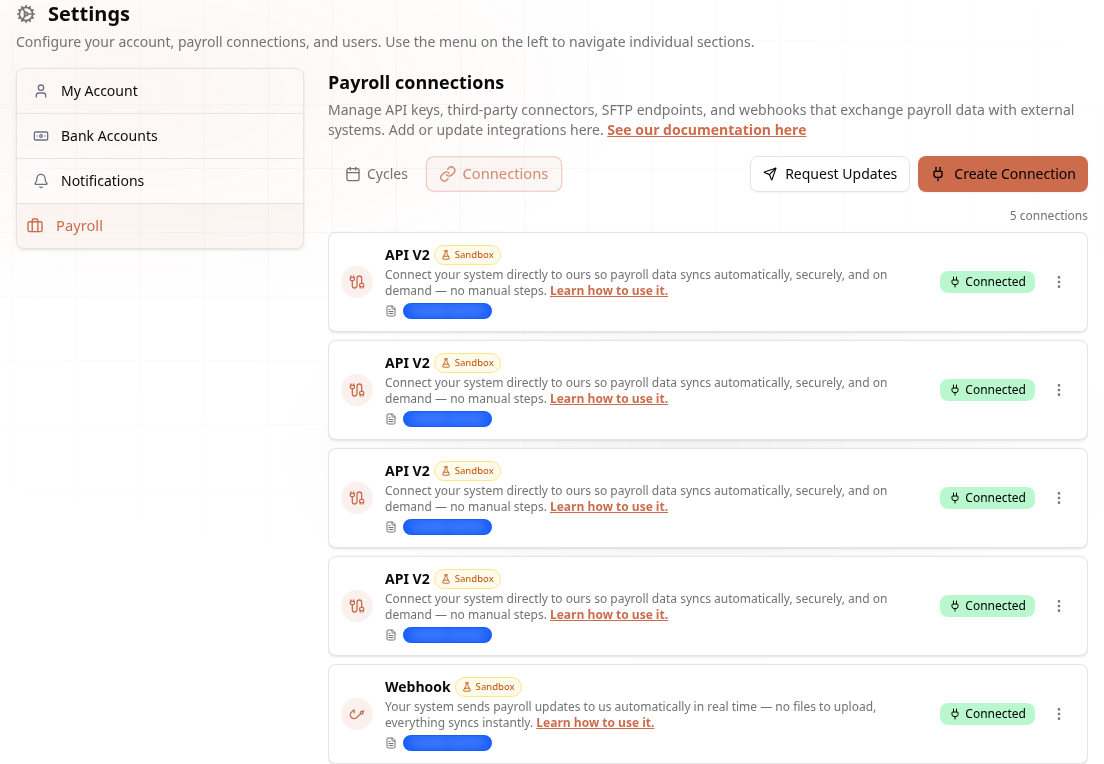
Find It in Your Portal
Two portals, two paths.
- Insureds (employers): Settings → Payroll → Connections in the Employer portal
- Payroll companies: Settings → Connections Center in the Provider portal
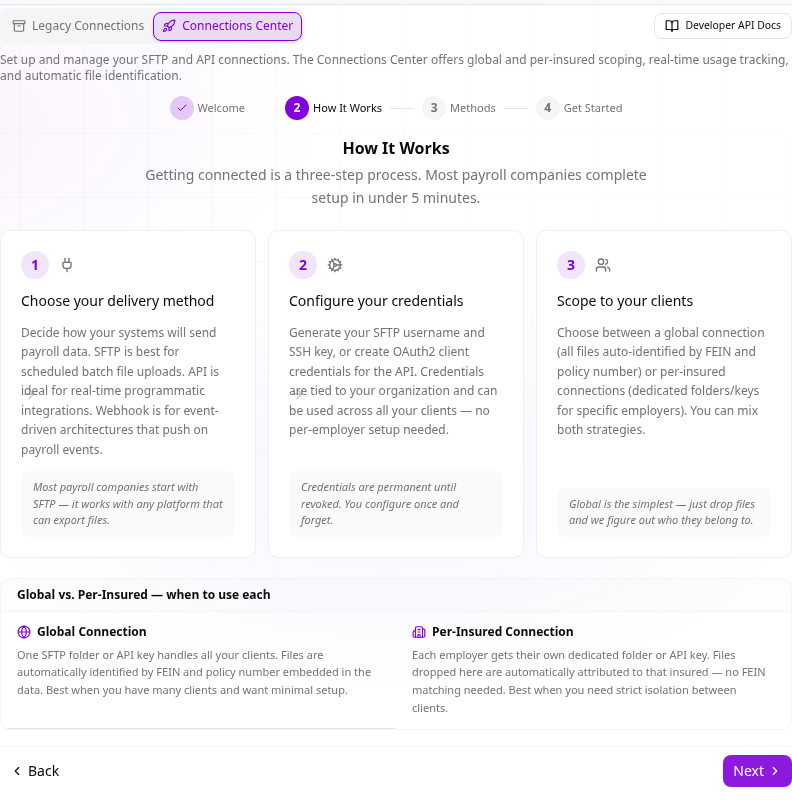
Global vs Per-Account Scope
The same connection types behave differently depending on who configures them.
Payroll companies set up one connection globally — it covers all their client employers at once. Files are identified and routed to the correct employer automatically by FEIN and policy number.
Insureds set up a connection just for themselves — everything they send belongs to their own account. No routing needed.
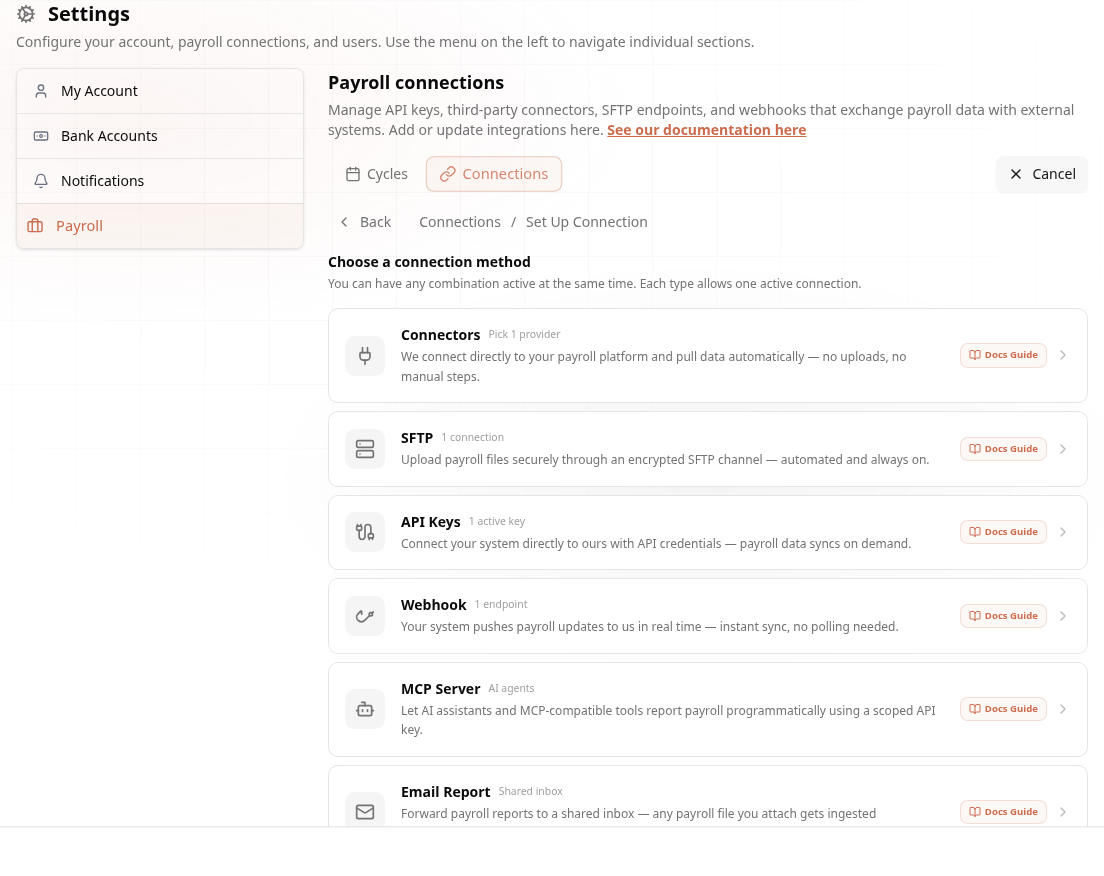
Choose a Connection Method
Six ways in for employers, four for providers.
Employers click Create Connection and pick a method. You can have any combination active at the same time; each type allows one active connection.
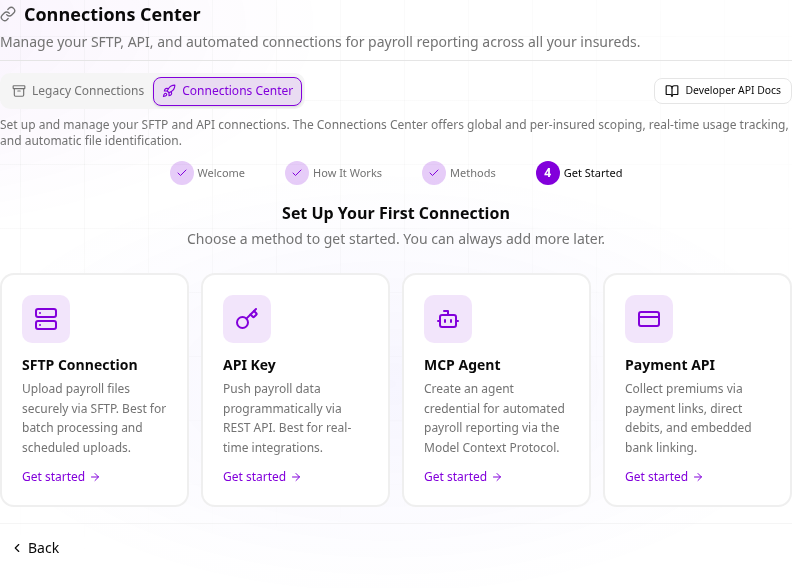
Payroll companies get a guided setup with four methods — SFTP, API Key, MCP Agent, and Payment API:
Connection Statuses
Know what each badge means.
- Connected — active and syncing
- Pending — created, waiting on requested credentials; you’ll be notified
- Needs Attention — credentials failed; re-verify from the card’s Manage menu
- Sandbox — test mode; data flows through the dry-run pipeline