What you'll learn
Before you start
- An Audit1 account
- An SFTP client (FileZilla, WinSCP, or command-line
sftp)
1
Open the Connection Center
Navigate to the SFTP method.
- Employers: Settings → Payroll → Connections → Create Connection → SFTP
- Payroll companies: Settings → Connections Center → SFTP Connection → Get started
2
Create the SFTP Connection (Employer)
One click — Audit1 generates the account for you.
Audit1 creates a secure SFTP account for your company on sftp.audit1.com, port 22, AES-256 encrypted. Use any SFTP client to upload payroll files automatically.
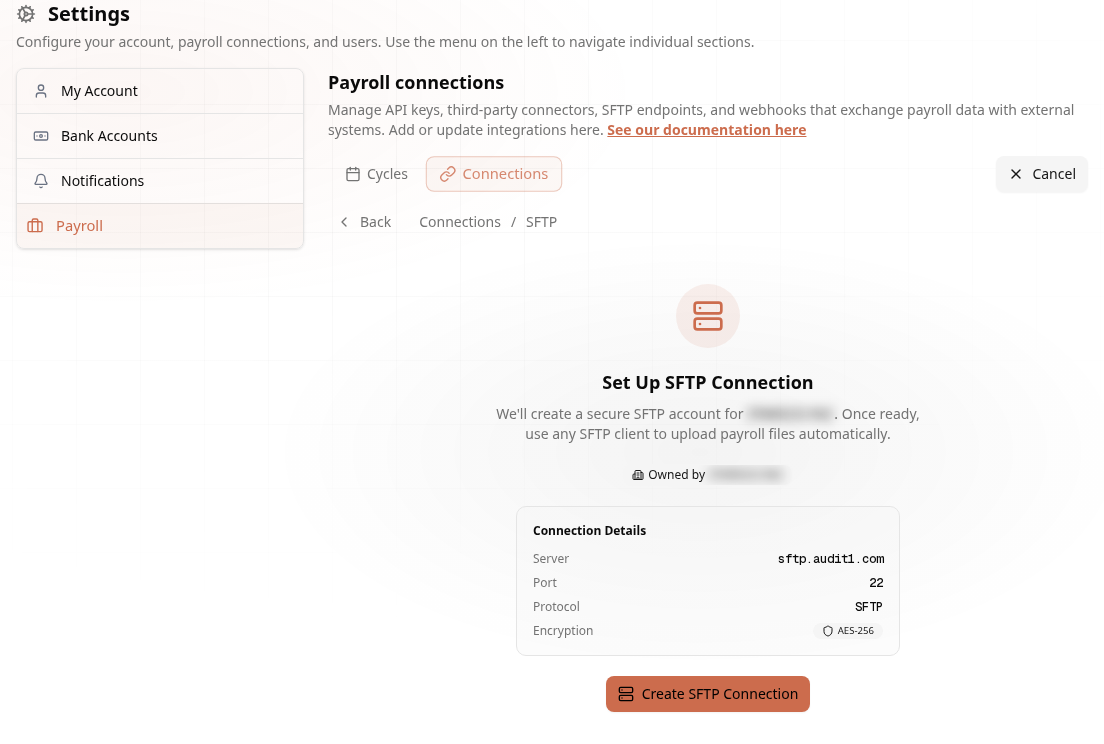
Save your password immediately — it is only displayed once. Lost it? Create a new SFTP connection.
3
Choose Your Scope (Payroll Company)
Global folder or per-insured folders.
Providers choose between a Global SFTP folder (one folder for all your clients — files are auto-identified by FEIN and policy number) or a Per-Insured SFTP folder dedicated to a specific employer.
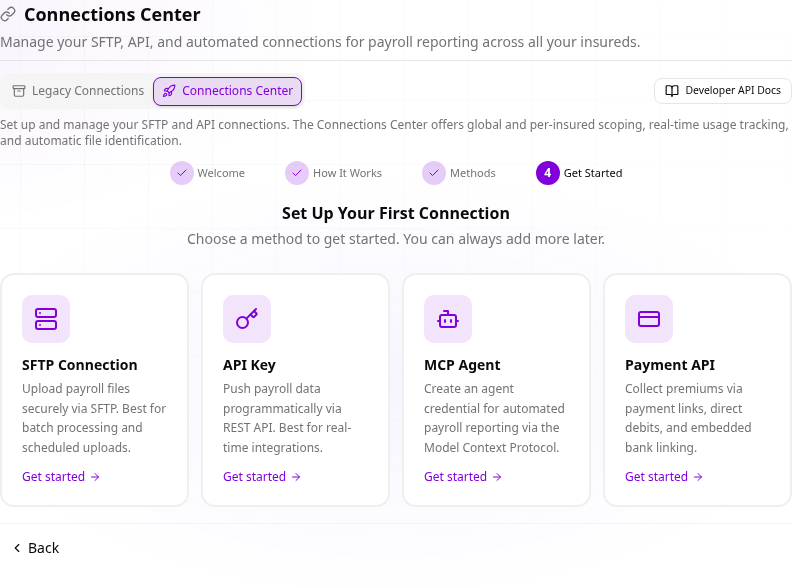
Global is the simplest — just drop files and Audit1 figures out who they belong to.
4
Upload Your First File
Drop a payroll file and watch it process.
- Connect with your SFTP client using the generated credentials
- Upload a payroll file (CSV or Excel) to your folder
- Within minutes the file appears in Payroll Files in your portal
All set! See the SFTP docs for the file format spec, naming tips, and automation examples.