What you'll learn
Good to know
- You reported on time the moment your file arrived — everything after is our processing
- A missing class code must be fixed within 24 hours of our email — after that, it's charged at your policy's highest-rate class
- Anyone signed into the account can fix a row — no special permission needed
- We email you the moment a row needs attention, and that email starts the 24 hours
Your File's Journey
From the moment a payroll file reaches us to a fully explained premium.
When a payroll file reaches us — uploaded by you, sent by your payroll company, or delivered automatically by a connector — it goes on a short, friendly journey:
- Received — we store the original file exactly as it arrived. You can always download it back.
- Read — we recognize the columns (names, wages, class codes, states), even when every payroll system labels them differently.
- Checked — every row is verified against your policy: is the class code on the policy? Is the state covered?
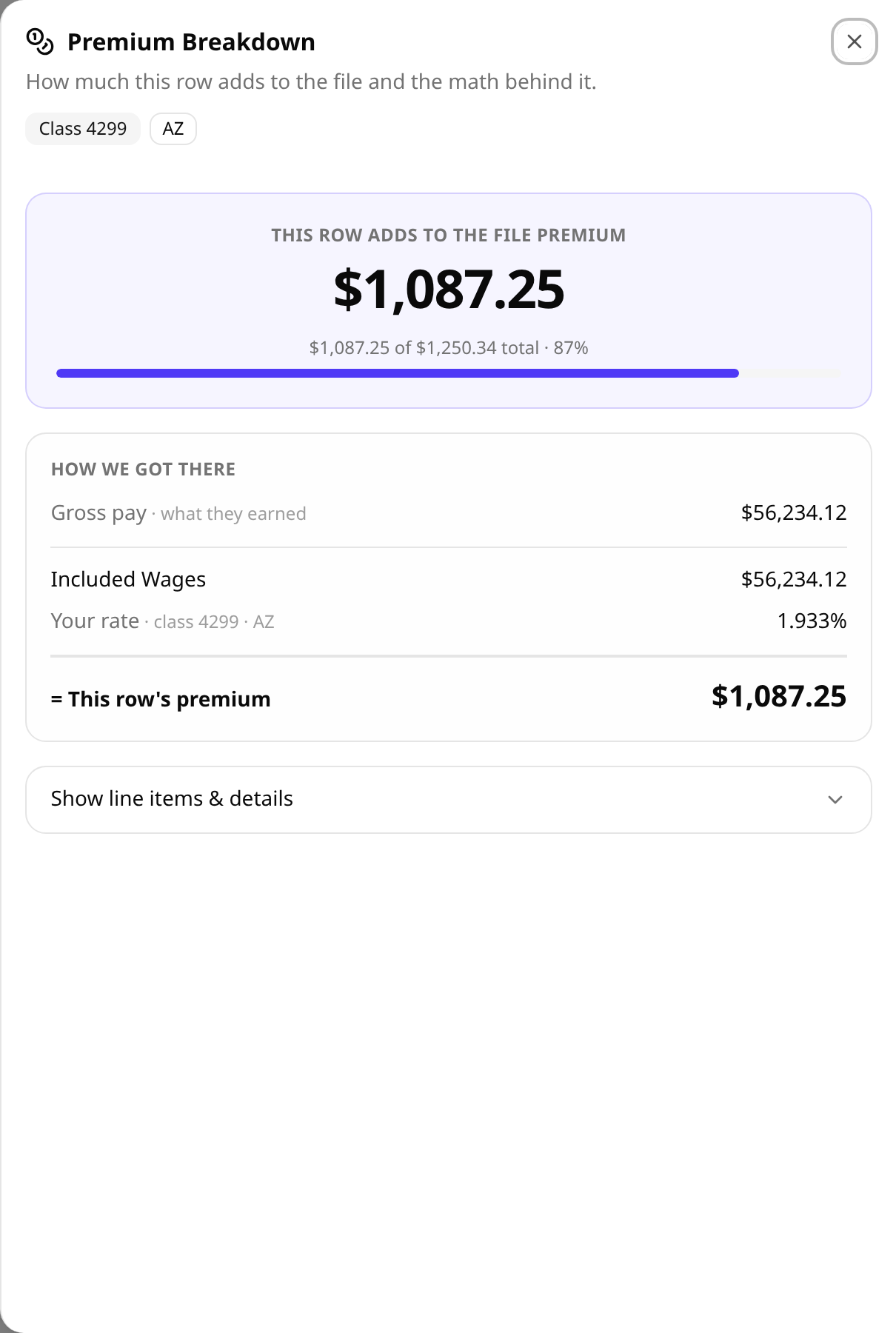
- Priced — rows that pass are priced using your policy's rates. That's your premium for the period, calculated from real payroll.
- Done — the file shows as completed, your reporting schedule marks the period as reported, and you can see every number behind the math.
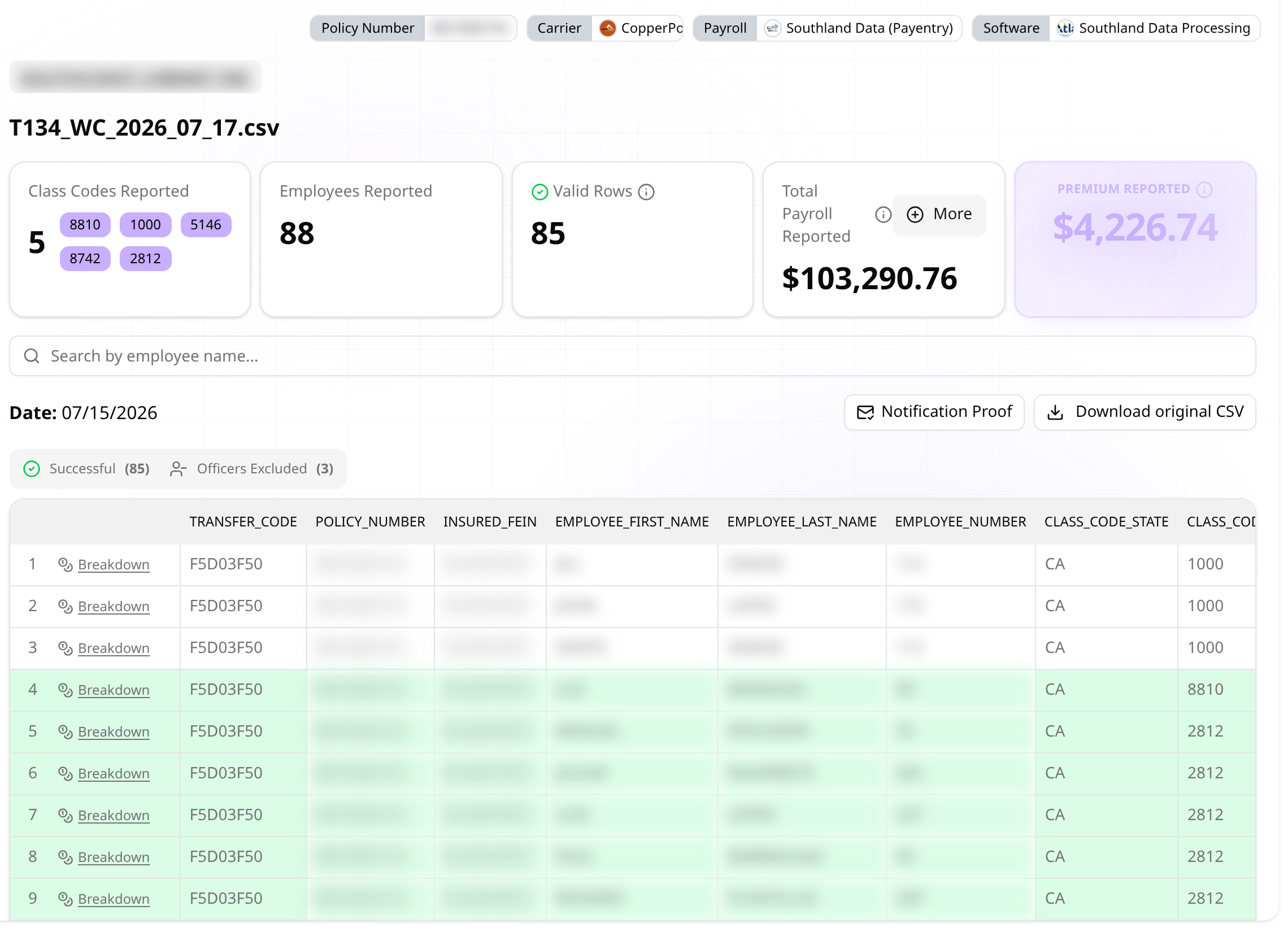
The File Detail Screen, Area by Area
Everything on the page, explained — no black boxes.
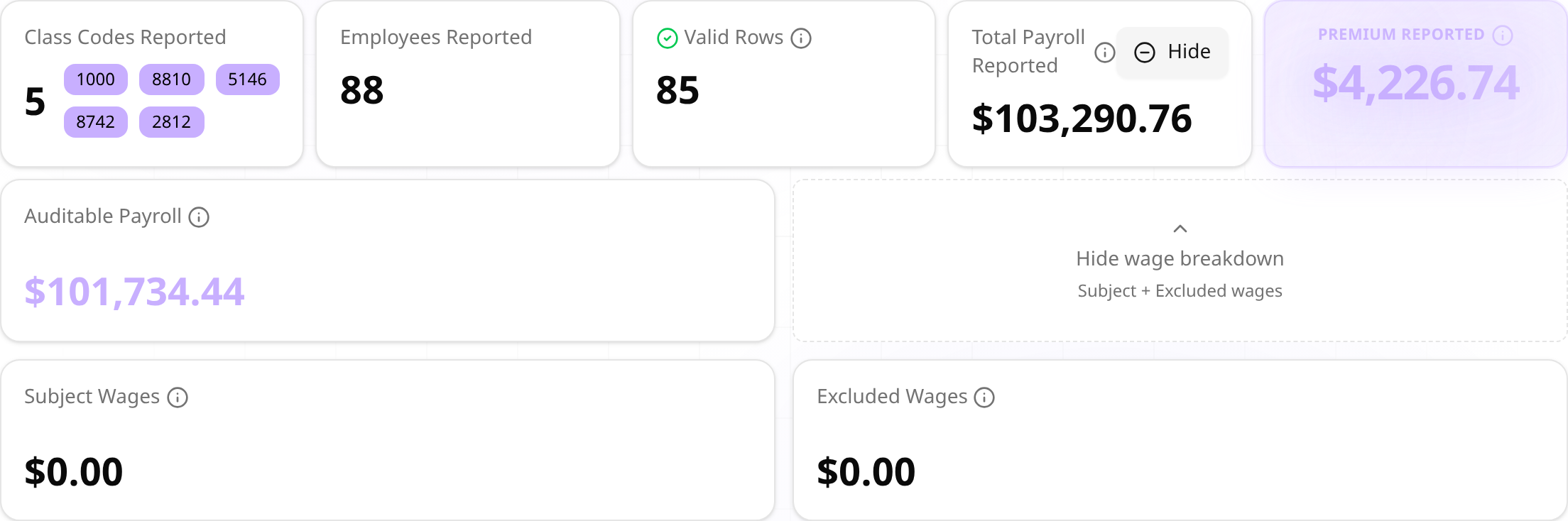
At the top of every file are the overview cards: Class Codes Reported, Employees Reported, Valid Rows, Total Payroll Reported, and Premium Reported. Tap More on Total Payroll to see Auditable vs Gross, and Subject vs Excluded wages.

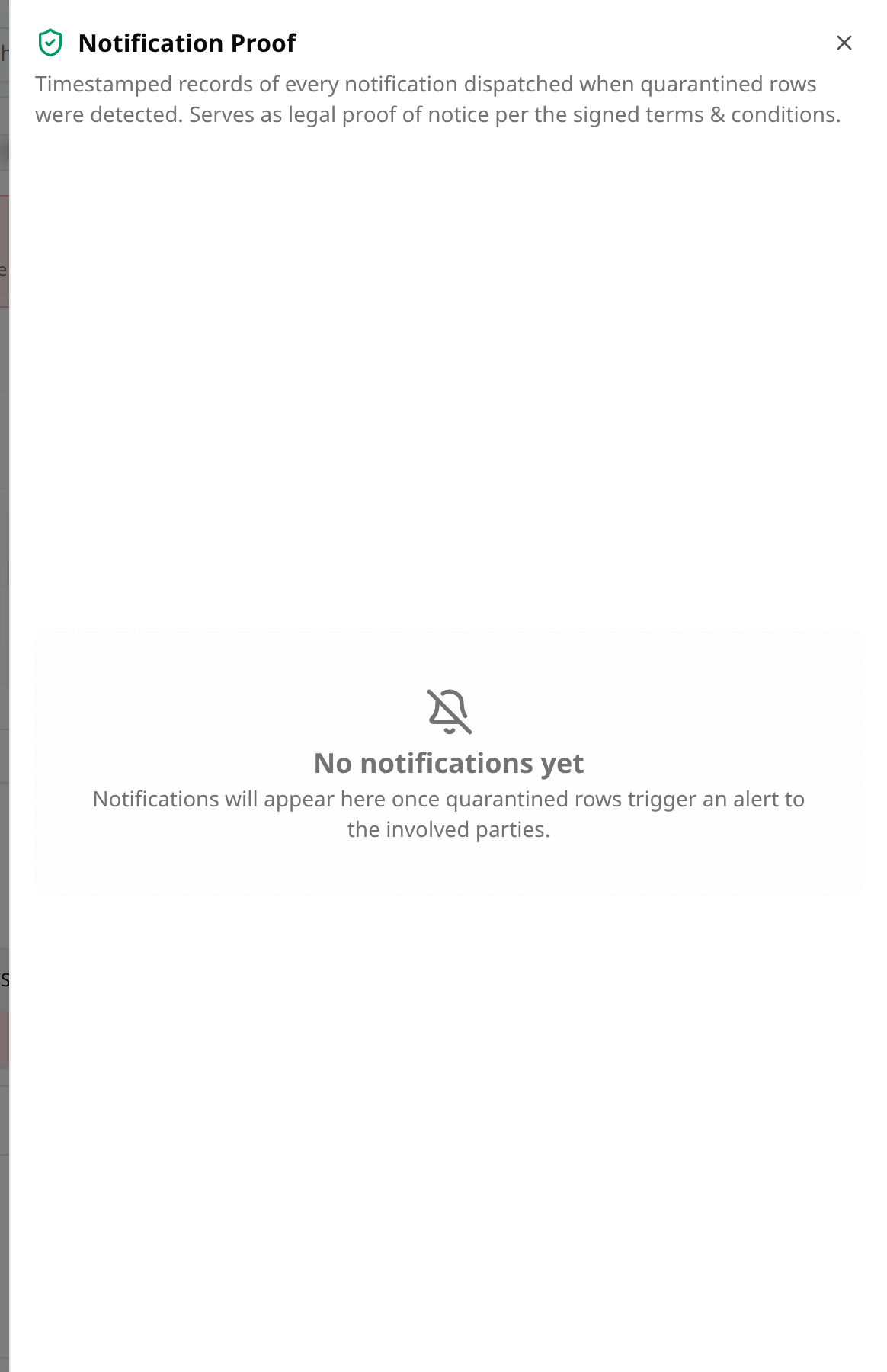
You'll always find two things in the header. Notification Proof shows a timestamped record of every notification we sent about this file — and if nothing was ever sent, it says so honestly. Download original CSV hands you back the exact file that arrived.

Green Rows and Red Rows
What makes a row wait — and everything that doesn't.
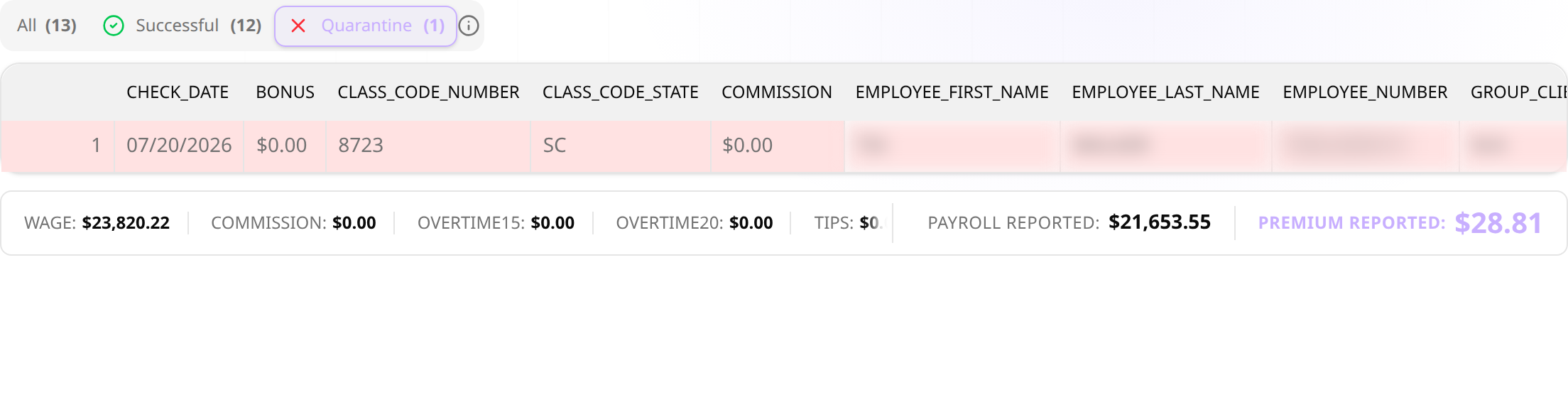
A row turns red only when we genuinely can't price it — for example:
- the class code is missing, unrecognized, or not on your policy,
- the state is missing, unrecognized, or not covered by your policy,
- or we can't tell which of several possibilities applies.
Everything else is green (priced) or slate (a $0-payroll period — tracked so you can confirm it was intentional).
Quarantine: What It Is — and What It Is Not
This is the part people worry about, so let's be direct.
Red rows collect in the Quarantine tab, and a calm red banner appears at the top of the file. Here's what it says — and, just as importantly, what it does not mean.

Not “late”
Your file arrived — you reported on time. The period shows as received.
Not a fine or penalty
Nothing punitive happens. There is no interest, no fee, nothing.
Not charged while you fix it
Premium for a red row is not collected while it waits for your fix — your debit waits for it too.
24 hours for class codes
A missing or invalid class code not fixed within 24 hours of our email is priced at your policy's highest-rate class, as our terms of service state.
“Fix a missing class code within 24 hours — otherwise it is charged at your policy's highest-rate class.”
When a red row happens, the reason is spelled out plainly — no codes to decipher:

So the honest consequence of leaving a class code unfixed: 24 hours after our email, that row is priced at the highest-rate class on your policy and included in your debit. A correction you send afterwards applies from then on. Anything else still unresolved when the policy ends is compiled into a report for your carrier's renewal audit.
Officers & Subcontractors
Why some rows are calmly set aside — with nothing to fix.
If your roster marks an officer as excluded from coverage, or a row belongs to a subcontractor, that person was never going to be billed. Their rows are set aside at $0 in their own calm, informational tabs — Officers Excluded, Subcontractors — with no red, no action needed, and nothing to fix.

Fixing a Red Row (You Approve First)
The one and only time a fix costs anything — and you see the number first.
- Open the Quarantine tab (or tap Fix now on the red banner) and correct the highlighted cells — usually a class code or state.
- Save activates as soon as at least one row is fixed. Fix what you can; leave the rest for later.
- Before anything happens, a dialog shows you the exact additional amount, the rows included, the bank account's last digits, and the cycle date.
- Nothing is charged for your fix unless you press Confirm. Cancel and no money moves — but a missing class code still left after 24 hours is priced at the highest-rate class.
- After confirming, the newly-priced rows are billed once, in the next processing batch — and you get a confirmation notice.
The Emails You'll Receive
Every notice is branded for your program — and provable on-screen.
Every notice we send is recorded in the file's Notification Proof panel — a timestamped, immutable record that serves as legal proof of notice. If nothing was sent, it tells you that too.
- Payroll File ReceivedThe intake receipt when a file arrives. Its key line: “You will only hear from us if rows are quarantined.” One receipt covers a whole split upload.
- File — N Row(s) QuarantinedSent the moment validation finds red rows, to you and to whoever sent the file. It tells you exactly which rows need a fix and that a missing class code not fixed within 24 hours is charged at your policy's highest-rate class. This email starts the 24 hours.
- Action needed: N record(s) can't be pricedA gentle follow-up while rows remain — about weekly at first, then no more than once every two weeks. It can be turned off per account on request.
- A charge was scheduled for the records you correctedThe receipt after you confirmed a fix on screen: amount, records, bank account last-4, and expected debit date. The email is the receipt — the on-screen dialog was the approval.
- Class codes appliedIf a class code was not fixed within 24 hours, this tells you which employees were priced at your policy's highest-rate class.
- Payment receivedA simple confirmation when a payment settles.
What Happens at Renewal
Nothing is silently dropped, and nothing is retroactively charged.
When a policy term ends, any records still unresolved are compiled into an unresolved-records report for the carrier's renewal audit. That's the whole story — nothing is silently dropped, and nothing is charged after the fact.