What you'll learn
Before you start
- An Audit1 employer account
- A payroll report file (CSV, Excel, or PDF)
1
Enable Email Reporting
Flip the switch in the Connection Center.
Go to Settings → Payroll → Connections → Create Connection → Email Report and turn on Enable email reporting.
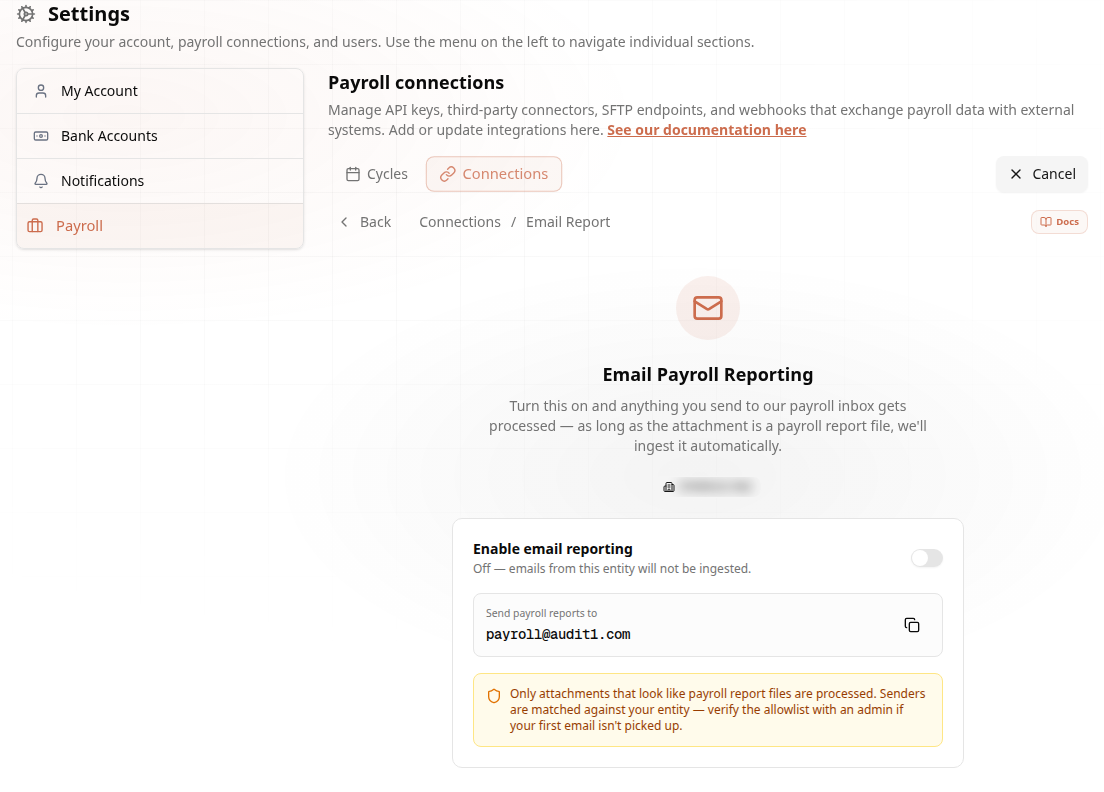
Do this first. Registering your sender here means your emails are matched instantly instead of being held for manual review.
2
How Audit1 Knows the Email Is Yours
Sender first, FEIN second — never the filename.
Audit1 identifies the company behind an email in this order:
- Registered sender email — the address you enabled in the Connection Center (strongest match)
- Verified company domain — any address at your verified domain
- FEIN in the subject or body — e.g.
12-3456789orFEIN: 12-3456789 - Contact email lookup — the sender matches the contact on your employer record
No match = manual review. The email isn’t lost, but processing is much slower. Register your sender.
3
File Naming and the FEIN
The filename does NOT identify you — but name files well anyway.
- Put your FEIN in the subject line — it’s the official tiebreaker, and essential if one person sends for more than one company
- Name files clearly:
CompanyName_FEIN_PayPeriod.csv(e.g.Acme_12-3456789_2026-05-31.csv) — it doesn’t drive identification, but it makes review and support far faster - Allowed types: CSV, Excel (.xlsx/.xls), PDF — anything else is skipped silently
- Keep attachments under 25 MB and never password-protect them
4
How Many Files per Email?
Many files, ONE company per email.
- Multiple attachments are fine — each becomes its own payroll file
- All attachments in one email go to the SAME company — the one identified from the sender/FEIN
- Reporting for several companies? Send one email per company, each with that company’s FEIN in the subject
Never mix companies in one email — every file would land on a single account.
5
Send Your First Report
One email, done.
- Attach your payroll file(s)
- Put the company FEIN and pay period in the subject — e.g.
Acme 12-3456789 payroll 2026-05-16 to 2026-05-31 - Send to [email protected]
- Within 10–15 minutes the file appears in Payroll Files in your portal
All set! Full rules and troubleshooting in the Email connector docs.